Creating UGC Ads
Step-by-step guide to creating AI-generated UGC video ads with Tornads.
This guide walks you through the complete workflow for creating an AI-generated UGC (User-Generated Content) video ad using Tornads.
Overview
The ad creation process follows a simple 3-step wizard:
- Product Info — Provide your product details and a reference image
- Video Settings — Configure format, duration, language, and audience
- AI Customization — Define the virtual presenter and script preferences
After submitting, the AI generates multiple script variants for you to choose from. Once you select a script, the platform renders a fully edited video ad featuring a virtual presenter talking about your product.
Starting a New Ad
Navigate to Home and click "Create now" under AI UGC Ads, or go directly to the Create Ad page from the sidebar.
You have two options to begin:
Option A: Extract from Product URL
Paste a product URL (e.g., from Amazon, Shopify, or any e-commerce site) and click Extract data. The AI will automatically pull:
- Product title
- Product description
- Product images
This saves time by pre-filling the wizard with real product data.
Option B: Upload Manually
Click Upload manually to skip extraction and enter all product details yourself. This is ideal when you have custom product photos or want full control over the input.
Step 1: Product Info
In this step, you provide the core information about your product.
Product Title (required)
Enter a clear, descriptive title for your product. This is used by the AI to understand what the ad is about and will influence the generated script.
Example: "Maybelline Sky High Mascara"
Product Features (optional)
Describe the key features and selling points of your product. The more detail you provide, the better the AI-generated script will be.
Example: "Volumizing and lengthening mascara with a lightweight formula. Features a flex tower brush for maximum lash impact. Buildable, clump-free coverage."
Logo (optional)
Upload your brand logo. This can be used in the final video composition.
AI Reference Image (required)
Upload a high-quality product photo. This image serves a critical role:
- It is used to generate AI B-roll footage of your product
- It helps the AI understand the visual context for avatar scenes
- Choose your best, cleanest product shot for optimal results
Supported formats: JPG, PNG, WebP
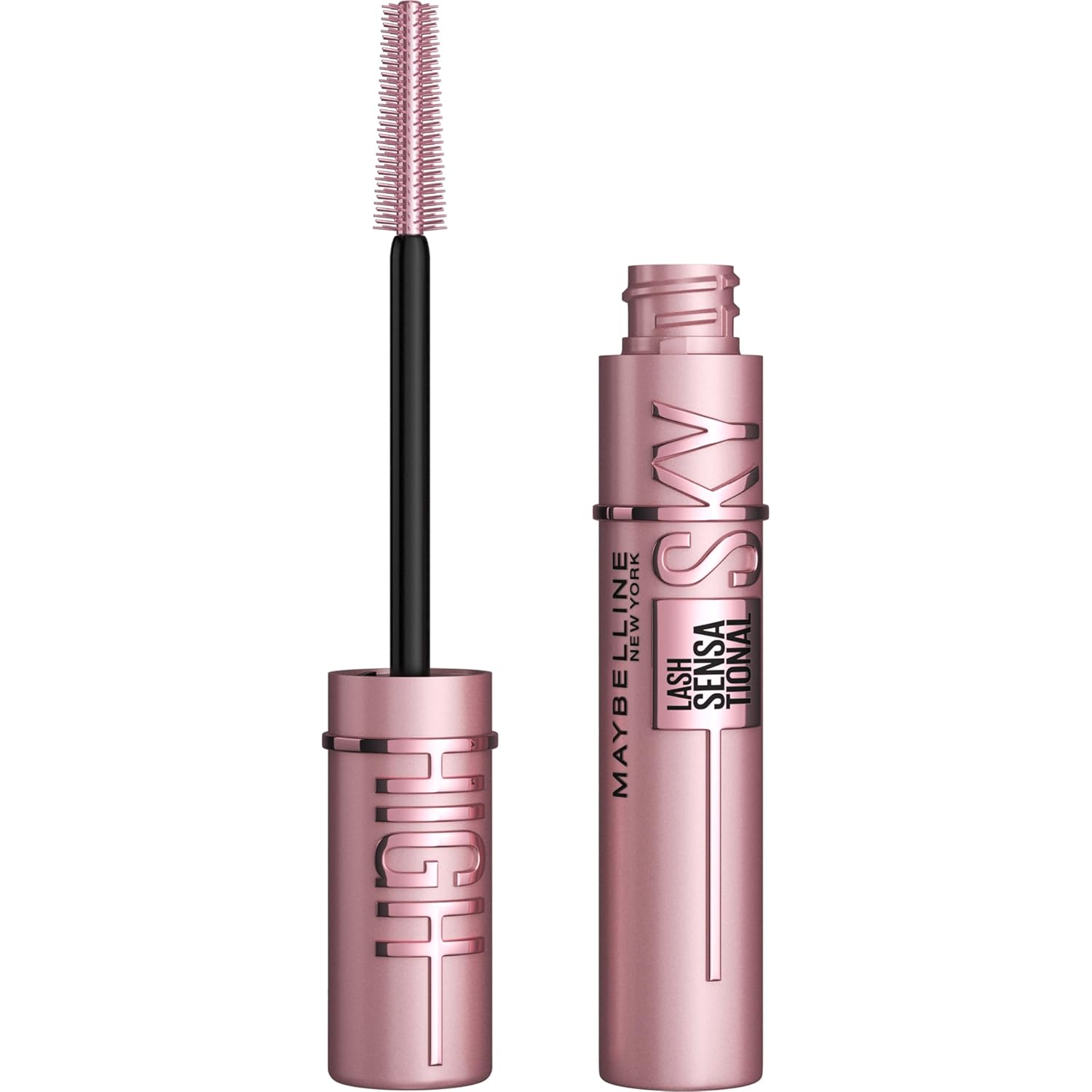
Once all required fields are filled, click Next to proceed.
Step 2: Video Settings
Configure the technical aspects of your video ad.
Aspect Ratio
Choose the video format that matches your target platform:
- 9:16 — Vertical format, ideal for TikTok, Instagram Reels, YouTube Shorts, and Stories
- 16:9 — Landscape format, ideal for YouTube, Facebook feeds, and websites
- 1:1 — Square format, ideal for Instagram posts and Facebook feeds
Duration
Select the length of your ad:
- 15 seconds — Short, punchy ads perfect for social media. Costs 150 credits.
- 23 seconds — Longer format allowing more product detail. Costs 230 credits.
The credit cost is displayed in real-time as you make your selection.
Language
Choose the language for the AI-generated script and voiceover:
- Auto (AI decides based on product info)
- English, Chinese, Spanish, French, German, Italian, Japanese, Korean, Portuguese, Russian
Target Audience (optional)
Describe who this ad is for. This helps the AI tailor the script tone and messaging.
Example: "Women aged 18-35 interested in beauty and makeup"
Tags
Select predefined audience tags to further guide the AI. Available tags include:
- Millennials, Parents, Students
- Tech enthusiasts, Fitness enthusiasts, Foodies
- Pet owners, Fashionistas, Home improvement DIYers
- Travelers, Health-conscious individuals
- Eco-friendly consumers, Budget-conscious shoppers
Background Music
Toggle background music on or off. When enabled, you can select from a library of royalty-free music tracks to accompany your video.
Click Next to proceed to the final step.
Step 3: AI Customization
This is where you define the virtual presenter and script generation preferences.
Customize AI Avatar
Define who presents your product in the video. You have two options:
Let AI decide what fits best (default)
The AI automatically selects an avatar that best matches your product category and target audience. This is the recommended option for most users.
Customize myself
Take full control over the avatar's appearance by specifying:
- Gender — Male or Female
- Age Range — 18-30, 30-40, 40-50, 50-60, or 60+ years
- Ethnicity — White/European, Black/African, East Asian, South Asian, Hispanic/Latino, or Middle Eastern/North African
- Body Type — Slim, Average, Athletic, Muscular, Curvy, Plus Size, Petite, or Tall
- Personalize Your Avatar — Free-text field (up to 500 characters) for additional details like "tattoo on neck, big beard, wearing a suit, red hair, glasses"
Script Guidelines
Control how the AI writes the ad script:
Let AI write the script (default)
The AI creates a compelling script based on your product information, features, and target audience. The script follows a proven UGC ad structure with:
- A strong hook to grab attention
- Problem identification
- Solution presentation (your product)
- Proof and credibility
- Clear call to action
Add guidelines
Provide custom directions for the AI scriptwriter (up to 1,000 characters). Use this to:
- Highlight specific promotions: "Mention this is a limited-time 30% off deal"
- Emphasize certain features: "Focus on the eco-friendly packaging"
- Set the tone: "Keep it casual and fun, like talking to a friend"
- Include specific messaging: "Mention the discount code SAVE20"
Generate Ad
When you are ready, click Generate Ad. The button displays the exact credit cost (e.g., "Generate Ad · 150 credits").
Credits are deducted immediately and the AI begins processing your request.
After Submission: Script Selection
After clicking Generate Ad, you are redirected to the ad detail page. The AI works in the background to generate multiple script variants.
Processing State
While the AI is working, you will see a loading indicator with "Generating Ad Scripts..." This typically takes a few moments.
Script Selection
Once generation is complete, you are presented with multiple script options. Each script card displays the full ad structure:
- Scene description — Visual context for the scene
- Hook — The opening line designed to grab attention
- Problem amplification — Identifying the viewer's pain point
- Solution — How your product solves the problem
- Proof and credibility — Why the viewer should trust the product
- Call to action — What the viewer should do next
You can:
- Browse through the different script variants
- Edit individual sections of any script to fine-tune the messaging
- Select your preferred script to proceed with video generation
Video Rendering
After confirming your script selection, the platform renders the final video with:
- An AI-generated virtual presenter speaking your script
- B-roll footage generated from your product image
- Background music (if enabled)
- Professional editing and transitions
The finished video appears in your Creations page, marked as "ready" when complete.
Tips for Best Results
- Use high-quality product images — Clear, well-lit photos produce better AI B-roll footage
- Write detailed product features — The more context you provide, the better the script
- Define your target audience — Helps the AI tailor tone and messaging
- Start with AI defaults — Let the AI choose avatar and script for your first ad, then customize based on results
- Try multiple formats — Different aspect ratios and durations work better on different platforms
- Review and edit scripts — The AI provides a strong starting point, but small edits can make a big difference